Microsoft Research Lego News Extension
Overview
This browser extension allows you to analyze and interact with online news using AI models. Follow the steps below to install it manually in Microsoft Edge:
Installation Steps
- Download the latest extension package:
Download Extension
- Unzip the downloaded file to a known location on your computer.
- Open Microsoft Edge and navigate to:
edge://extensions
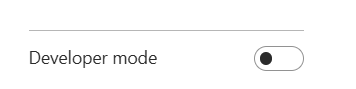
- Enable "Developer mode" using the toggle in the lower left corner.
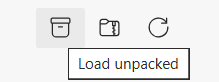
- Click the "Load unpacked" button.
- Select the folder you just unzipped. The extension will appear in your Edge toolbar.

Usage
Once installed, open any news article (e.g., on MSN.com), then click the extension icon to begin processing and start your AI-enhanced reading experience! (You can pin it in browser to make it easier to access).
-
Index a new article — If an article is not yet indexed by LegoNews Readers, click Analyze this article. Wait for the progress bar to reach 100%, then refresh the page.
Note: Only green links will be processed using Bing index data. Red/gray links often cannot be indexed due to subscription or paywalled content.
-
Review missing statements — Once the article is indexed, the right panel lists missing statements discovered around the web, clustered by statement groups. Click a group to expand it, then click a publisher to open their article.
-
Use Debug Mode — Debug Mode shows the statements extracted from the current article for verification of LLM extraction quality. Clicking an item will highlight the exact statement spans in the article.
If you have any research related questions or want to collaborate, please contact Markus Mobius: mobius@microsoft.com.
If you encounter any issues using the extension or need updates, please contact Kevin Gao: kevingao@microsoft.com.